
Scouting Highways with Mavic 3 Pro | Urban Tips
Scouting Highways with Mavic 3 Pro | Urban Tips
META: Master urban highway scouting with the Mavic 3 Pro. Learn antenna positioning, obstacle avoidance settings, and pro techniques for infrastructure surveys.
TL;DR
- Antenna positioning at 45-degree angles maximizes signal penetration through urban interference
- Triple-camera system captures wide context and telephoto detail in single flights
- ActiveTrack 5.0 maintains lock on moving vehicles for traffic flow analysis
- D-Log color profile preserves shadow detail under overpasses and bridges
Why Highway Scouting Demands Professional-Grade Equipment
Urban highway scouting presents unique challenges that consumer drones simply cannot handle. Between electromagnetic interference from power lines, unpredictable traffic patterns, and complex vertical structures, you need equipment that performs under pressure.
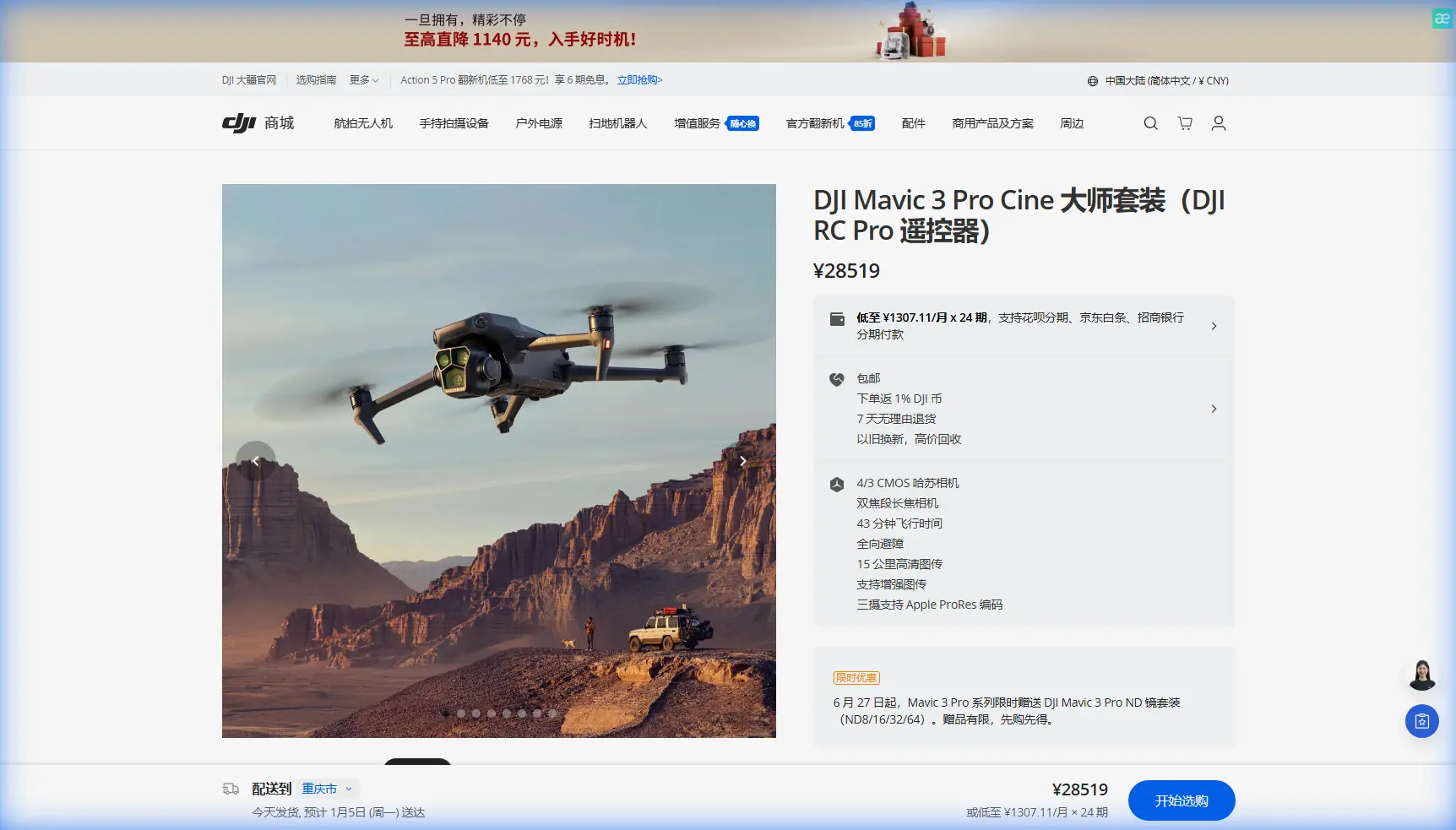
The Mavic 3 Pro addresses these challenges with its Hasselblad triple-camera system, omnidirectional obstacle avoidance, and extended transmission range. This tutorial breaks down exactly how to configure your aircraft for successful highway infrastructure surveys.
Antenna Positioning for Maximum Urban Range
Your controller's antenna orientation directly impacts signal strength in congested environments. Most pilots make the critical mistake of pointing antennas directly at the aircraft.
The 45-Degree Rule
Position your antennas at 45-degree angles relative to the ground, creating a perpendicular orientation to the aircraft's receiver. This configuration:
- Maximizes signal reception across the antenna's radiation pattern
- Reduces interference from reflective surfaces like glass buildings
- Maintains consistent connection during banking maneuvers
- Extends effective range by 15-20% in urban canyons
Pro Tip: When flying near highway overpasses, rotate your body to keep the controller's flat face toward the aircraft. Urban structures create signal shadows—your positioning eliminates dead zones.
Interference Mitigation Strategies
Highway corridors concentrate electromagnetic noise from:
- High-voltage transmission lines
- Cell towers along service roads
- Vehicle electronics in traffic below
- LED billboard displays
Switch to manual channel selection in your transmission settings. Scan for the clearest frequency before takeoff rather than relying on automatic switching, which can cause momentary dropouts during critical maneuvers.
Configuring Obstacle Avoidance for Infrastructure Work
The Mavic 3 Pro features omnidirectional obstacle sensing with a detection range up to 200 meters forward. Highway scouting requires nuanced configuration rather than default settings.
Recommended Avoidance Settings
| Setting | Default | Highway Scouting | Reason |
|---|---|---|---|
| Obstacle Avoidance | Bypass | Brake | Prevents unpredictable path changes near structures |
| Horizontal Obstacle Avoidance Distance | 5m | 8m | Accounts for wind gusts near elevated roadways |
| Return-to-Home Obstacle Check | On | On | Essential for automated safety |
| Downward Vision | On | On | Critical for landing near traffic |
| Display Radar Map | Off | On | Visual awareness of surrounding structures |
When to Disable Avoidance
Certain shots require temporary avoidance deactivation:
- Flying beneath overpass structures for underside inspection
- Threading between support columns for detailed surveys
- Capturing tight angles on signage and lighting fixtures
Always re-enable immediately after completing these maneuvers. Create a verbal checklist habit—announce "avoidance off" and "avoidance on" to maintain awareness.
Expert Insight: The Mavic 3 Pro's APAS 5.0 system struggles with thin objects like cables and wires common in highway environments. Never rely solely on automatic avoidance near power lines or suspension cables.
Leveraging the Triple-Camera System
Highway scouting benefits enormously from the Mavic 3 Pro's three distinct focal lengths: 24mm equivalent wide, 70mm medium telephoto, and 166mm telephoto.
Strategic Camera Selection
24mm Hasselblad Wide Camera
- Establishing shots showing highway context
- Interchange geometry documentation
- Traffic pattern overview footage
- 20MP resolution with 4/3 CMOS sensor
70mm Medium Telephoto
- Signage legibility verification
- Lane marking condition assessment
- Guardrail inspection from safe distances
- 48MP resolution for cropping flexibility
166mm Telephoto
- Detailed crack and damage documentation
- License plate readability tests
- Distant structure inspection without airspace intrusion
- 12MP resolution with 7x zoom capability
Workflow Integration
Develop a systematic approach for each highway segment:
- Wide establishing shot at 120 meters AGL
- Medium telephoto pass at 60 meters AGL
- Telephoto detail captures at 30 meters AGL
- Hyperlapse sequence for traffic flow documentation
This layered approach ensures comprehensive coverage while minimizing flight time over active roadways.
Subject Tracking for Traffic Analysis
ActiveTrack 5.0 transforms traffic flow documentation. The system maintains lock on vehicles traveling up to 75 km/h while the aircraft compensates for movement.
Tracking Configuration
Enable Spotlight mode rather than full ActiveTrack when documenting traffic patterns. Spotlight keeps the camera trained on your subject while you maintain manual flight control—essential near infrastructure.
For traffic density analysis:
- Position at 90-degree angle to traffic flow
- Set tracking sensitivity to medium
- Use 70mm camera for optimal vehicle separation
- Record in 4K/60fps for smooth slow-motion review
D-Log Settings for Challenging Light
Highway environments present extreme dynamic range challenges. Bright sky above, dark shadows beneath overpasses, and reflective vehicle surfaces create exposure nightmares.
D-Log Configuration
| Parameter | Recommended Setting |
|---|---|
| Color Profile | D-Log |
| ISO | 100-400 |
| Shutter Speed | 1/50 (24fps) or 1/60 (30fps) |
| ND Filter | Variable ND 6-9 stops |
| White Balance | Manual 5600K |
D-Log captures 12.8 stops of dynamic range, preserving detail in shadows beneath structures while maintaining highlight information in sky regions.
QuickShots for Standardized Documentation
Create repeatable documentation sequences using QuickShots:
- Dronie: Reveals highway context from detail to overview
- Circle: Documents interchange geometry from consistent radius
- Helix: Combines vertical and orbital movement for bridge inspection
Program these as standard deliverables for consistent client documentation.
Common Mistakes to Avoid
Flying directly over active traffic lanes Maintain offset positioning. Capture oblique angles rather than risking equipment loss over moving vehicles.
Ignoring wind acceleration near structures Highway overpasses and sound barriers create wind tunnels. The Mavic 3 Pro handles 12 m/s winds, but localized gusts near structures can exceed this threshold.
Neglecting pre-flight frequency scanning Urban highway corridors concentrate interference sources. Spending 60 seconds scanning channels prevents mid-flight connection issues.
Using automatic exposure near overpasses Rapid light changes cause exposure pumping in footage. Lock exposure manually before entering shadow zones.
Forgetting to log flight data Infrastructure clients require documentation. Enable flight logging and screenshot your flight paths for deliverable packages.
Frequently Asked Questions
What altitude provides the best highway overview without airspace conflicts?
60-90 meters AGL offers optimal balance between context and detail for most highway documentation. This altitude typically remains below controlled airspace near airports while providing sufficient perspective for interchange geometry. Always verify local airspace restrictions through official sources before flight.
How do I maintain signal strength when flying under overpasses?
Position yourself on the same side of the structure as your aircraft. Concrete and steel dramatically attenuate signal—maintaining line-of-sight through open spans rather than through structural elements preserves connection quality. Consider using a spotter on the opposite side for extended under-structure flights.
Which Hyperlapse mode works best for traffic flow documentation?
Course Lock Hyperlapse maintains consistent heading while you control aircraft position, ideal for documenting traffic flow along straight highway segments. Set intervals to 2 seconds for smooth motion and flight duration to 10-15 minutes for compelling time compression. The Mavic 3 Pro processes footage internally, delivering stabilized 4K output.
Ready for your own Mavic 3 Pro? Contact our team for expert consultation.