
Mavic 3 Pro: Highway Mapping in Mountains Guide
Mavic 3 Pro: Highway Mapping in Mountains Guide
META: Learn how to map mountain highways with the DJI Mavic 3 Pro. Expert tips on flight altitude, camera settings, D-Log, and obstacle avoidance for precision results.
By Jessica Brown — Aerial Photographer & Mapping Specialist
TL;DR
- 400 feet AGL is the optimal flight altitude for mapping mountain highways, balancing ground resolution with terrain clearance safety
- The Mavic 3 Pro's tri-camera system lets you capture wide overview maps and telephoto detail passes in a single flight
- Use D-Log color profile and manual exposure to retain maximum data across shadowed valleys and sun-exposed ridgelines
- ActiveTrack and obstacle avoidance are essential tools when flying near unpredictable mountain terrain and shifting winds
Why Mountain Highway Mapping Demands a Tri-Camera Drone
Mapping highways that snake through mountain terrain is one of the most technically demanding tasks in aerial photography. Elevation changes of 1,000+ feet between valley floors and ridgelines, deep shadows cast by peaks, and turbulent winds around passes all conspire against clean, usable data. A single-camera drone forces you into painful compromises between coverage and detail.
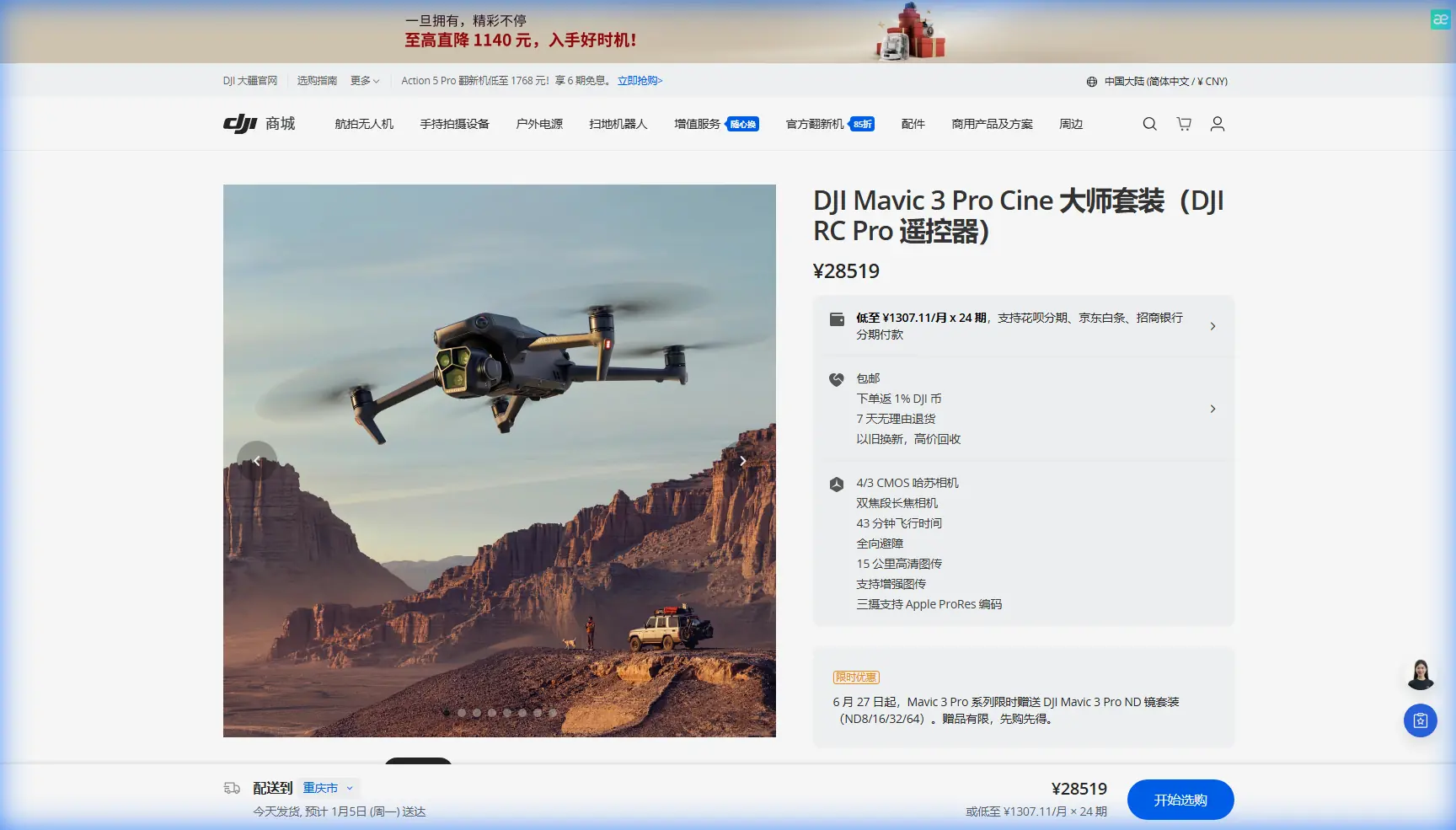
The Mavic 3 Pro eliminates that compromise. Its three-lens Hasselblad camera system—a 24mm wide, 70mm medium telephoto, and 166mm telephoto—means you can capture broad orthomosaic coverage and then switch to a telephoto pass for pavement condition details or signage documentation without landing.
I've spent the last two years mapping highway corridors across the Rockies and the Sierra Nevada range. This guide breaks down the exact workflow I use to get survey-grade results with the Mavic 3 Pro, from pre-flight planning to post-processing.
Step 1: Pre-Flight Planning for Mountain Terrain
Understand the Airspace and Legal Requirements
Before you even charge a battery, research the airspace along your highway corridor. Mountain areas frequently overlap with:
- Temporary Flight Restrictions (TFRs) for wildfire operations
- National Park boundaries where drone flights are prohibited
- Controlled airspace near mountain airports with non-standard patterns
- State DOT permit requirements for highway infrastructure work
Use the B4UFLY app or Aloft in combination with sectional charts. Mountain airports often have unusual approach corridors that aren't immediately obvious on simplified airspace apps.
Map Your Terrain Elevation Profile
This is where mountain mapping diverges drastically from flatland work. A highway that climbs 3,000 feet over a 10-mile stretch means your altitude above ground level (AGL) changes constantly, even when your altitude above sea level (MSL) stays fixed.
Expert Insight: I plan every mountain highway mission by first pulling USGS elevation data for the corridor. I break the highway into segments where elevation change stays within 150 feet, then program separate flight plans for each segment. This keeps my ground sampling distance (GSD) consistent at roughly 1.2 cm/pixel when flying the 24mm wide lens at 400 feet AGL. Inconsistent GSD is the number one reason mountain mapping projects fail in post-processing.
Use DJI Pilot 2 or a third-party app like DJI Terra to build waypoint missions that follow terrain. The Mavic 3 Pro supports terrain follow mode, which adjusts altitude based on elevation data, keeping your AGL consistent even as the highway climbs.
Step 2: Optimal Camera and Flight Settings
Why 400 Feet AGL Is the Sweet Spot
After dozens of mountain highway projects, I've settled on 400 feet AGL as the ideal mapping altitude for the Mavic 3 Pro's wide camera. Here's the reasoning:
| Altitude (AGL) | GSD (24mm lens) | Coverage per Frame | Wind Exposure | Terrain Risk |
|---|---|---|---|---|
| 200 ft | 0.6 cm/px | Low | Moderate | High |
| 300 ft | 0.9 cm/px | Medium | Moderate | Medium |
| 400 ft | 1.2 cm/px | High | High | Low |
| 500 ft | 1.5 cm/px | Very High | Very High | Low |
At 200 feet, you get stunning resolution but dangerously close proximity to terrain that can rise unpredictably. At 500 feet, wind exposure increases significantly and resolution drops below what most DOT clients accept. 400 feet gives you a GSD of approximately 1.2 cm/pixel—sharp enough to identify individual cracks in pavement—while maintaining safe clearance from ridgelines, tree canopies, and power lines that frequently parallel mountain highways.
Configure the Hasselblad Camera System
For mapping, lock everything into manual mode. Auto exposure will constantly shift as you fly between sunlit ridges and shadowed canyons, making your orthomosaic a patchwork of inconsistent exposures.
My standard settings for the 24mm wide camera:
- Shooting mode: Timed interval at 2-second intervals
- ISO: 100–200 (never higher to avoid noise in shadow areas)
- Shutter speed: 1/800 or faster to eliminate motion blur
- Aperture: f/3.5–f/5.6 for peak sharpness
- Color profile: D-Log for maximum dynamic range
- Format: RAW (DNG) — never JPEG for mapping data
- White balance: Fixed at 5500K (do not use auto)
Why D-Log Is Non-Negotiable for Mountain Work
Mountain highways present extreme dynamic range challenges. A single frame might contain a sun-blasted rock face and a deeply shadowed ravine with 12+ stops of luminance difference between them. The Mavic 3 Pro's D-Log profile captures roughly 12.8 stops of dynamic range, retaining detail in both extremes.
Your D-Log footage will look flat and desaturated on screen—that's expected. The data is there, and you'll recover it in post-processing. Shooting in a standard color profile clips highlights and crushes shadows irreversibly, which degrades photogrammetric accuracy.
Step 3: Flying the Mission Safely
Leverage Obstacle Avoidance Intelligently
The Mavic 3 Pro features omnidirectional obstacle sensing using vision sensors on all six sides. In mountain terrain, this system is your critical safety net against:
- Cliff faces that appear suddenly when following winding roads
- Tree canopies on forested slopes
- Power lines and cell towers along highway corridors
- Birds of prey — surprisingly common at altitude
Set obstacle avoidance to Brake mode rather than Bypass mode during mapping runs. Bypass mode causes the drone to deviate from its programmed flight path to go around obstacles, which creates gaps in your mapping coverage. Brake mode stops the aircraft in place, alerts you, and lets you manually navigate around the obstacle before resuming the mission.
Pro Tip: When flying near mountain ridgelines, wind shear can push the Mavic 3 Pro several feet sideways in an instant. I always set my lateral obstacle avoidance sensitivity to maximum and maintain at least 50 feet of horizontal clearance from any vertical terrain face. The Mavic 3 Pro's 46 minutes of maximum flight time gives you enough buffer to fly conservative paths without running out of battery.
Use Subject Tracking for Detail Passes
After your grid-pattern mapping pass with the wide camera, switch to the 70mm medium telephoto and use ActiveTrack to follow the highway centerline for a detail pass. ActiveTrack locks onto the road surface and keeps it centered in frame as you fly along the corridor.
This telephoto pass captures:
- Pavement condition details not visible in wide shots
- Guardrail and signage condition data
- Drainage infrastructure along the roadside
- Retaining wall integrity on cut slopes
The Mavic 3 Pro's ActiveTrack 6.0 handles the smooth curves of mountain highways remarkably well, though it can struggle with sharp switchbacks. For tight hairpin turns, switch to manual control.
Step 4: Advanced Techniques for Comprehensive Data
Hyperlapse for Progress Documentation
If you're mapping a highway construction or repair project, the Mavic 3 Pro's Hyperlapse mode creates compelling time-compressed visual documentation that clients and stakeholders love. Set it to Waypoint Hyperlapse mode and program a path along the highway. The drone will fly the path while capturing timelapse frames, producing a smooth video that shows the entire corridor in seconds.
QuickShots for Context Footage
Before or after your mapping mission, capture QuickShots at key locations—major interchanges, bridge crossings, tunnel portals—to provide visual context for your deliverables. The Helix and Rocket QuickShots modes are particularly effective for showcasing highway infrastructure against the dramatic backdrop of mountain terrain.
Multi-Pass Overlap Strategy
For photogrammetric accuracy, plan your grid pattern with these overlap values:
- Front overlap: 80% minimum
- Side overlap: 70% minimum
- Cross-hatch pattern: Fly a second grid at 90 degrees to the first for complex terrain
The Mavic 3 Pro's 4/3 CMOS sensor on the wide camera captures 20MP images with enough detail that these overlap percentages yield point clouds dense enough for sub-5cm accuracy when processed with ground control points.
Common Mistakes to Avoid
Flying at a fixed MSL altitude. This is the most common and most damaging mistake. A fixed MSL altitude means your GSD varies wildly as terrain rises and falls. Always program terrain-following waypoints.
Ignoring wind patterns. Mountain winds follow predictable thermal patterns—rising on sun-facing slopes in the morning, channeling through passes in the afternoon. Schedule flights for early morning when winds are calmest, typically between 6:00 AM and 9:00 AM.
Relying on auto exposure. As discussed above, auto exposure creates inconsistent imagery that degrades photogrammetry. Lock to manual.
Skipping ground control points. The Mavic 3 Pro has RTK module support, but even with RTK, placing 5–7 ground control points per kilometer of highway dramatically improves absolute accuracy.
Neglecting battery temperature. Mountain temperatures can drop significantly at altitude. The Mavic 3 Pro's batteries perform best between 20°C and 40°C. In cold conditions, keep spare batteries warm inside your jacket and allow the drone to hover for 60 seconds before starting the mission to warm the active battery.
Forgetting the telephoto detail pass. Wide-camera mapping data tells you where things are. The 70mm and 166mm telephoto passes tell you what condition they're in. Deliver both to your client.
Frequently Asked Questions
What is the best time of day to map mountain highways with the Mavic 3 Pro?
Early morning between 6:00 AM and 9:00 AM local time is optimal for two reasons. Wind speeds in mountain terrain are typically at their lowest before thermal heating begins, and the low sun angle creates long shadows that actually help photogrammetry software identify elevation changes and surface texture. Avoid midday when harsh overhead light flattens detail and thermal turbulence peaks.
Can the Mavic 3 Pro handle the high altitudes found in mountain passes?
The Mavic 3 Pro is rated for a maximum flight altitude of 6,000 meters (19,685 feet) above sea level. Most mountain highway passes in North America and Europe fall well within this envelope. However, air density decreases at high elevation, which reduces propeller efficiency. Expect 10–15% reduced flight time at elevations above 10,000 feet MSL. Plan your battery budget accordingly and shorten your mission segments.
How do I process D-Log mapping imagery for photogrammetry?
Do not apply color grading to your D-Log images before photogrammetric processing. Software like Pix4D, DroneDeploy, or Agisoft Metashape works with the raw tonal data and performs its own radiometric adjustments. After your orthomosaic and point cloud are generated, you can then apply color correction to the final deliverable products. If you need visually corrected individual images for reports, batch-process a copy of your image set using Adobe Lightroom with a D-Log to Rec.709 LUT, but always keep your original D-Log RAW files intact for the photogrammetry pipeline.
Mountain highway mapping is challenging, technical, and deeply rewarding when the data comes together. The Mavic 3 Pro's tri-camera system, robust obstacle avoidance, long flight time, and D-Log capability make it the most capable tool I've used for this work. Master the terrain-following workflow, respect the mountain weather, and you'll produce deliverables that set a new standard for your clients.
Ready for your own Mavic 3 Pro? Contact our team for expert consultation.