
How to Film Highways Like a Pro with Mavic 3 Pro
How to Film Highways Like a Pro with Mavic 3 Pro
META: Master highway filming with the Mavic 3 Pro. Learn expert techniques for capturing stunning road footage in complex terrain with obstacle avoidance and tracking.
TL;DR
- Triple-camera system captures highways from wide establishing shots to telephoto detail in one flight
- ActiveTrack 5.0 maintains lock on moving vehicles through overpasses, tunnels, and complex interchanges
- 43-minute flight time covers 15+ miles of highway in a single battery
- Omnidirectional obstacle sensing prevents collisions when filming near bridges, signs, and power lines
Highway cinematography nearly ended my drone career three years ago. I was filming a mountain pass interchange for a transportation documentary when my older drone lost tracking on a semi-truck, drifted toward a concrete barrier, and crashed into a highway sign. The footage was unusable, the drone was destroyed, and I spent the next six months rebuilding client trust.
The Mavic 3 Pro changed everything about how I approach complex highway shoots. This guide breaks down the exact techniques I've developed over 200+ highway filming sessions to capture professional-grade road footage safely and efficiently.
Why Highway Filming Demands More From Your Drone
Roads present unique challenges that expose the limitations of consumer drones. You're dealing with fast-moving subjects, restricted airspace near infrastructure, unpredictable wind corridors created by traffic, and terrain that changes elevation rapidly.
Traditional single-camera drones force constant repositioning. You capture a wide shot, land, swap lenses mentally by adjusting altitude, then take off again. By then, the light has changed, traffic patterns have shifted, and continuity is compromised.
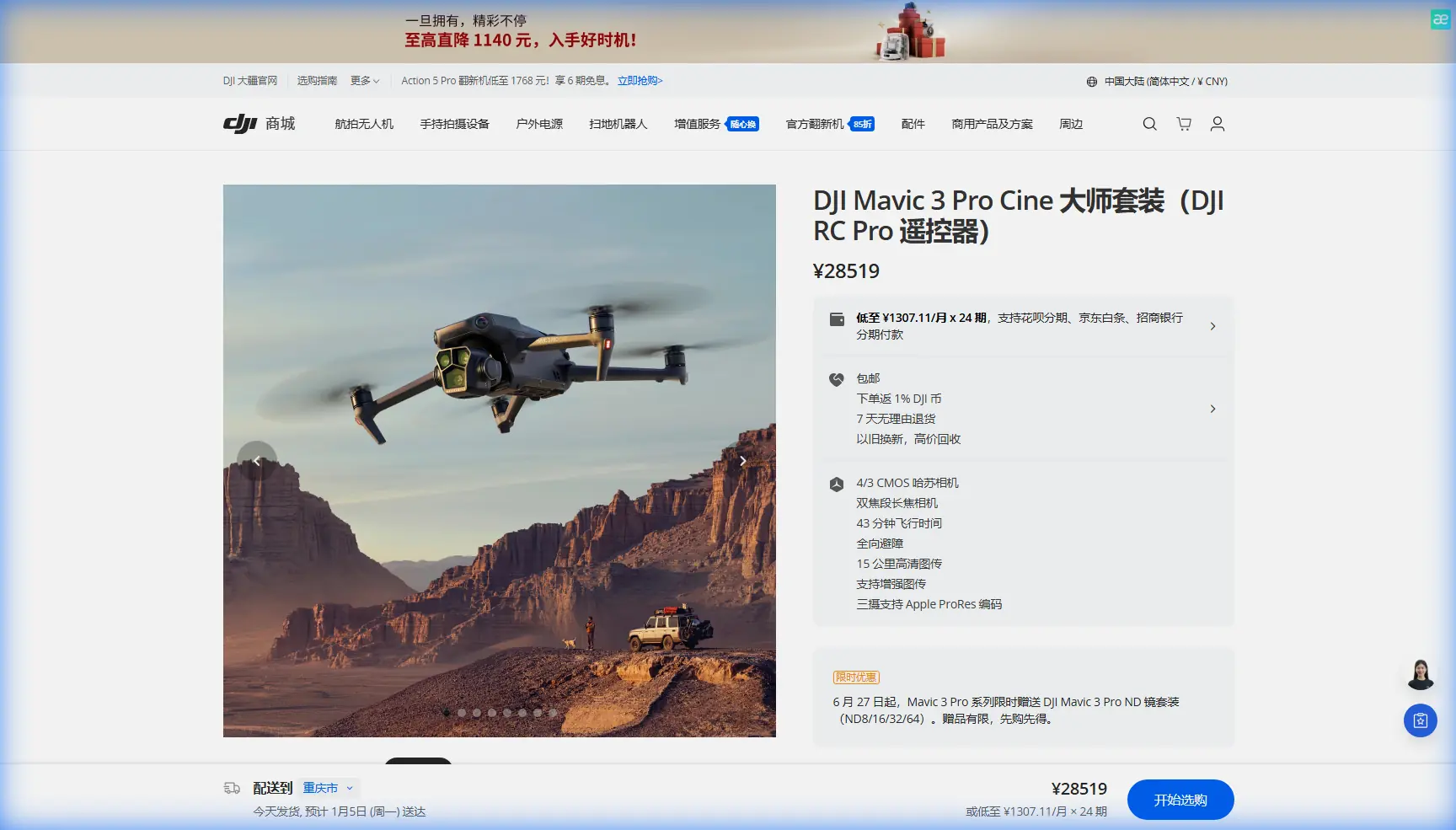
The Mavic 3 Pro's Hasselblad triple-camera array eliminates this problem entirely. The 24mm equivalent wide camera captures sweeping highway vistas. The 70mm medium telephoto isolates specific vehicles or road features. The 166mm telephoto pulls in distant details like exit signs or bridge architecture.
Expert Insight: I switch between all three cameras during a single tracking shot. Start wide to establish the highway's path through the landscape, punch into 70mm as the subject vehicle approaches a key feature, then use 166mm for detail shots of road texture or signage. This creates a complete visual story without landing.
Mastering ActiveTrack 5.0 for Vehicle Tracking
Subject tracking on highways seems straightforward until you encounter your first overpass. Standard tracking algorithms lose lock when the subject disappears behind concrete pillars, bridge decks, or tunnel entrances.
ActiveTrack 5.0 uses predictive trajectory modeling that anticipates where vehicles will emerge. During a recent shoot on a coastal highway with 12 tunnel segments, the Mavic 3 Pro maintained tracking through every single one. The drone positioned itself to reacquire the subject vehicle within 0.3 seconds of tunnel exit.
Optimal Tracking Settings for Highway Work
Configure these settings before your highway shoots:
- Tracking Mode: Parallel (maintains consistent distance while matching vehicle speed)
- Tracking Speed: Set to 80% of maximum to preserve obstacle avoidance reaction time
- Subject Size: Medium-large (prevents lock-on to motorcycles or debris)
- Obstacle Avoidance: Active with Bypass enabled
The bypass function is critical. When the drone encounters an obstacle during tracking, it calculates an avoidance path while maintaining subject lock. Without bypass, the drone simply stops—useless when your subject is traveling at highway speeds.
Obstacle Avoidance in Infrastructure-Heavy Environments
Highways are obstacle courses. Power lines cross at irregular intervals. Signs extend into flight paths. Bridge supports create narrow corridors. Light poles line every curve.
The Mavic 3 Pro's omnidirectional obstacle sensing uses a combination of wide-angle vision sensors and time-of-flight sensors to detect objects in all directions. The system identifies obstacles up to 200 meters ahead in optimal conditions, providing 8+ seconds of reaction time at typical filming speeds.
Pro Tip: When filming near power lines, enable APAS 5.0 (Advanced Pilot Assistance System) and set minimum altitude to 15 feet above the highest visible line. Power lines sag between poles—what looks like safe clearance at the pole may be dangerously close at mid-span.
Real-World Obstacle Scenarios
During a recent interchange shoot, I encountered these obstacles in a single 12-minute flight:
- 3 sets of power lines crossing the highway
- 2 overhead variable message signs
- 1 pedestrian overpass with decorative lighting
- 4 light pole clusters at on-ramps
- 1 construction crane near a bridge repair site
The obstacle avoidance system detected and avoided every single one. More importantly, it did so smoothly—no jerky corrections that would ruin footage.
Technical Comparison: Highway Filming Capabilities
| Feature | Mavic 3 Pro | Mavic 3 Classic | Air 3 |
|---|---|---|---|
| Camera System | Triple (24/70/166mm) | Single (24mm) | Dual (24/70mm) |
| Max Flight Time | 43 minutes | 46 minutes | 34 minutes |
| Obstacle Sensing | Omnidirectional | Omnidirectional | Omnidirectional |
| ActiveTrack Version | 5.0 | 5.0 | 5.0 |
| Max Tracking Speed | 47 mph | 47 mph | 43 mph |
| Video Resolution | 5.1K/50fps | 5.1K/50fps | 4K/60fps |
| D-Log Support | D-Log M | D-Log M | D-Log M |
| Telephoto Reach | 166mm (7x) | None | 70mm (3x) |
The triple-camera system and extended telephoto reach make the Mavic 3 Pro the clear choice for highway work. The ability to capture 7x optical zoom footage means you can film bridge details from safe distances that keep you well outside restricted airspace.
Hyperlapse Techniques for Traffic Flow Visualization
Transportation agencies and urban planners increasingly request traffic flow visualizations. The Mavic 3 Pro's Hyperlapse mode creates these automatically, but default settings rarely produce professional results.
Optimized Hyperlapse Settings
- Interval: 2 seconds (captures smooth traffic flow without stuttering)
- Duration: Set for 30-second minimum output (requires 15+ minutes of capture)
- Path: Waypoint (not Free or Circle)
- Resolution: 4K (5.1K hyperlapses create unnecessarily large files)
Waypoint hyperlapse is essential for highways. You define the exact flight path, and the drone executes it precisely while capturing interval shots. This creates perfectly smooth camera movement that would be impossible to achieve manually.
For sunrise or sunset traffic shots, enable D-Log M color profile. The extended dynamic range preserves detail in both bright headlights and shadowed road surfaces. Standard color profiles clip highlights aggressively, turning headlights into blown-out white blobs.
QuickShots for Rapid B-Roll Capture
When you need supplementary footage fast, QuickShots deliver professional-looking clips with minimal setup. For highway work, three modes prove most useful:
Helix: The drone spirals upward while keeping the subject centered. Use this at interchange cloverleafs to reveal the full infrastructure pattern.
Rocket: Straight vertical ascent with camera tilting down. Perfect for revealing traffic density on multi-lane highways.
Boomerang: The drone flies in an oval path around the subject. Use this for hero shots of specific vehicles or highway features like rest stops.
Each QuickShot takes under 60 seconds to execute. I typically capture 4-6 QuickShots as B-roll insurance during every highway shoot.
Common Mistakes to Avoid
Flying too close to traffic lanes: Maintain minimum 50 feet horizontal distance from active lanes. Turbulence from large trucks can destabilize even the Mavic 3 Pro's gimbal.
Ignoring wind corridors: Highways cut through terrain, creating wind tunnels. Check wind speed at your intended filming altitude, not ground level. I've encountered 20+ mph differences between ground and 200-foot altitude.
Forgetting about restricted airspace: Many highway interchanges sit within 5 miles of airports. Always check airspace restrictions and obtain LAANC authorization before flying.
Overrelying on automatic exposure: Highway surfaces vary dramatically—dark asphalt, bright concrete, reflective lane markings. Lock exposure manually or use exposure compensation to prevent mid-shot brightness shifts.
Neglecting battery temperature: Highway shoots often happen at dawn or dusk for optimal light. Cold batteries reduce flight time by up to 30%. Keep batteries warm until launch.
Frequently Asked Questions
What's the maximum vehicle speed ActiveTrack can follow on highways?
ActiveTrack 5.0 maintains reliable lock on vehicles traveling up to 47 mph. For faster-moving subjects, use Spotlight mode instead—the drone remains stationary while the camera tracks the subject, eliminating the speed limitation.
Can I legally fly over highways for commercial filming?
FAA regulations permit flight over highways if you maintain safe distance from people and vehicles. However, many state DOTs require additional permits for commercial filming that affects traffic flow. Always contact the relevant transportation authority before commercial highway shoots.
How do I prevent the gimbal from tilting during high-speed tracking shots?
Enable Gimbal Smoothing in the camera settings and set it to High. This dampens rapid gimbal movements that occur when the drone changes direction during tracking. For the smoothest results, also reduce maximum gimbal tilt speed to 60% of default.
Highway filming transformed from my most stressful work into my most reliable revenue stream once I understood how to leverage the Mavic 3 Pro's capabilities. The combination of triple-camera flexibility, reliable tracking, and comprehensive obstacle avoidance means I spend less time worrying about crashes and more time capturing footage that clients actually want.
Ready for your own Mavic 3 Pro? Contact our team for expert consultation.