
How to Capture Stunning Urban Venues with Mavic 3 Pro
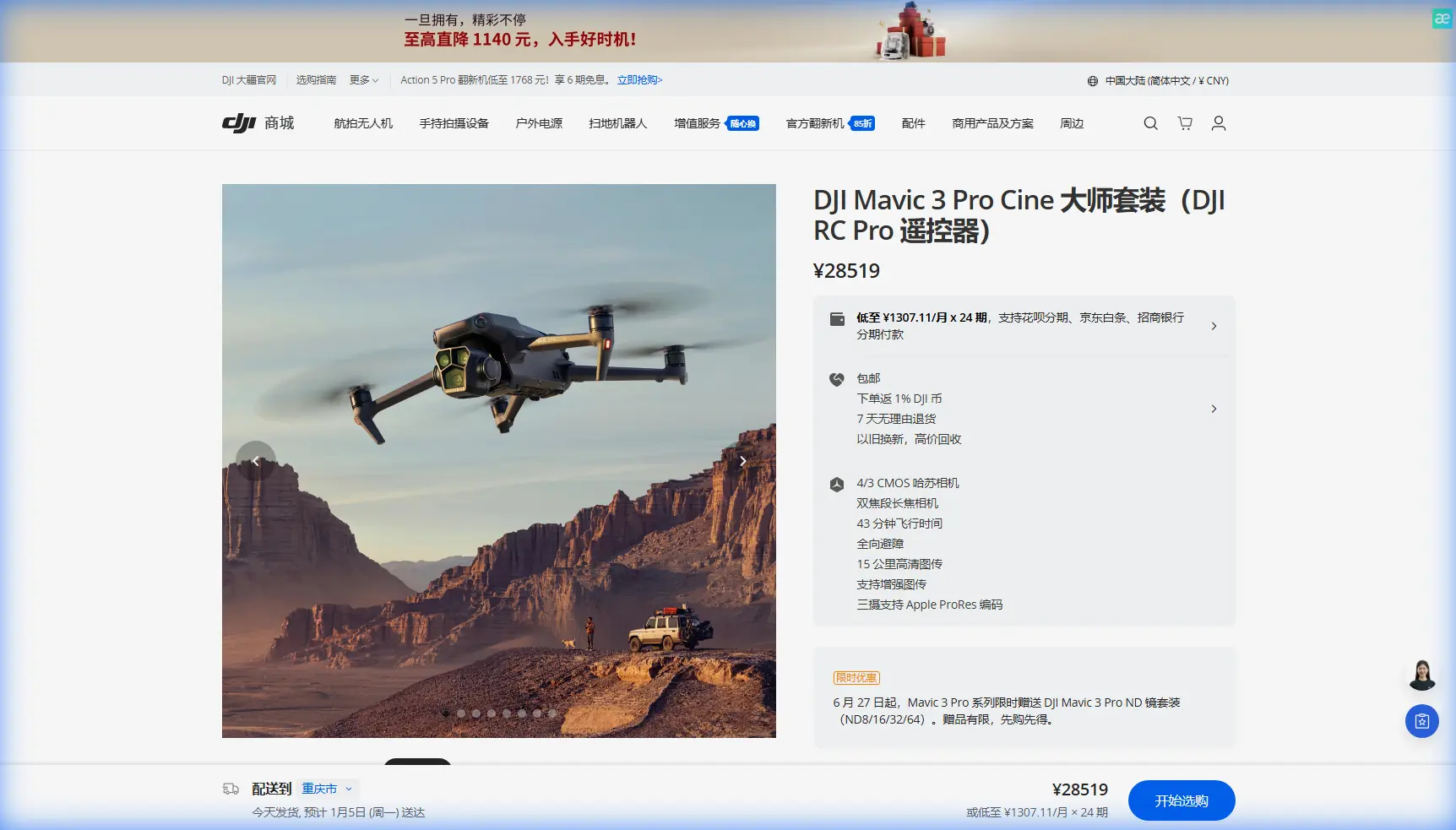
How to Capture Stunning Urban Venues with Mavic 3 Pro
META: Master urban venue photography with the Mavic 3 Pro. Learn expert techniques for obstacle avoidance, subject tracking, and cinematic shots in city environments.
TL;DR
- Position your antenna perpendicular to the drone for maximum signal strength in urban environments with interference
- Use ActiveTrack 5.0 combined with obstacle avoidance for smooth, safe venue fly-throughs
- D-Log color profile captures 12.8 stops of dynamic range, essential for high-contrast cityscapes
- Master Hyperlapse modes to create compelling venue showcase content that converts clients
Urban venue photography separates amateur drone operators from professionals who command premium rates. The Mavic 3 Pro's triple-camera system and advanced autonomous features make it the definitive tool for capturing hotels, event spaces, rooftops, and architectural landmarks—but only if you understand how to leverage its capabilities in challenging city environments.
This guide breaks down the exact techniques I use to deliver cinematic venue content that real estate developers and event planners actually pay for.
Understanding the Mavic 3 Pro's Urban Advantage
The Mavic 3 Pro wasn't designed for open fields. Its omnidirectional obstacle sensing system uses 8 wide-angle vision sensors plus 2 fisheye sensors to create a protective bubble around the aircraft. This matters enormously when you're threading between buildings or capturing tight interior courtyards.
The Triple Camera System Explained
Your Mavic 3 Pro houses three distinct cameras:
- Main Camera: 4/3 CMOS sensor, 24mm equivalent, Hasselblad color science
- Medium Tele: 1/1.3-inch sensor, 70mm equivalent, ideal for architectural details
- Tele Camera: 1/2-inch sensor, 166mm equivalent, compression effects for dramatic facades
For venue work, the 70mm medium telephoto becomes your workhorse. It eliminates wide-angle distortion that makes rooms look unnatural while maintaining enough field of view for context.
Expert Insight: Switch to the 70mm lens when shooting building exteriors from across the street. The compression effect makes structures appear more imposing and eliminates the "falling backward" distortion common in wide-angle architectural photography.
Antenna Positioning for Maximum Urban Range
Signal interference kills urban shoots. Buildings reflect and absorb radio waves, creating dead zones that can disconnect your drone mid-flight. Proper antenna positioning extends your reliable range by 30-40% in dense environments.
The Perpendicular Rule
Your controller antennas radiate signal from their flat faces, not their tips. Keep them perpendicular to the drone's position—if your aircraft is in front of you, angle the antennas slightly back. If it's above you, point them straight up.
Urban Signal Optimization Checklist
- Position yourself with clear line-of-sight to the venue's primary shooting angles
- Avoid standing near metal structures, electrical boxes, or vehicles
- Keep the controller at chest height—your body blocks signal when held at waist level
- Enable dual-band switching in settings for automatic frequency hopping
- Scout for elevated positions like parking structures that reduce building interference
Mastering Obstacle Avoidance for Venue Fly-Throughs
The Mavic 3 Pro's APAS 5.0 (Advanced Pilot Assistance System) doesn't just stop before obstacles—it actively plots paths around them. This transforms venue fly-throughs from white-knuckle experiences into repeatable, professional shots.
Configuring APAS for Interior-Adjacent Work
Navigate to Safety settings and configure these parameters:
- Set Obstacle Avoidance Behavior to "Bypass" rather than "Brake"
- Reduce Maximum Flight Speed to 8 m/s for predictable movements
- Enable Downward Sensing even when it reduces ground clearance warnings
- Turn on Return-to-Home Obstacle Check for automated safety
When to Disable Obstacle Avoidance
Sometimes sensors create problems. Reflective glass facades, water features, and thin architectural elements like cables or railings can confuse the system. For these scenarios:
- Switch to Manual Mode with sensors displaying but not controlling
- Fly slower than you think necessary—3-4 m/s maximum
- Use a spotter dedicated to watching obstacle clearance
- Plan your exact flight path before takeoff
Pro Tip: Glass-heavy modern venues require test approaches. Fly toward reflective surfaces slowly while monitoring the obstacle display. If the drone shows phantom obstacles or fails to detect the glass, mark that approach as manual-only in your shot list.
Subject Tracking for Dynamic Venue Content
Static shots establish a venue. Tracking shots sell it. The Mavic 3 Pro's ActiveTrack 5.0 uses machine learning to follow subjects through complex environments while maintaining composition.
ActiveTrack Modes for Venue Work
| Mode | Best Use Case | Speed Limit | Obstacle Behavior |
|---|---|---|---|
| Trace | Following walking tours through venue | 12 m/s | Full avoidance active |
| Parallel | Tracking alongside building facades | 12 m/s | Side sensors prioritized |
| Spotlight | Keeping venue centered while you fly freely | 15 m/s | All directions active |
For venue walkthroughs, Spotlight mode offers the most control. Lock onto a architectural feature—a fountain, entrance, or rooftop element—then manually fly creative paths while the gimbal keeps your subject perfectly framed.
Combining ActiveTrack with QuickShots
QuickShots automate complex maneuvers that would require significant practice to execute manually:
- Dronie: Pulls back and up from venue entrance—perfect for establishing shots
- Circle: Orbits around rooftop features or courtyards
- Helix: Ascending spiral that reveals venue in context of surroundings
- Rocket: Straight vertical ascent showing venue scale
Set your QuickShots distance to maximum for venue work. The longer movements create more dramatic reveals and give editors more footage to work with.
D-Log and Color Science for Urban Environments
Urban venues present extreme dynamic range challenges. Bright sky, shadowed facades, interior lighting visible through windows—a single frame might span 14+ stops of luminance.
Why D-Log Matters
The Mavic 3 Pro's D-Log M profile captures 12.8 stops of dynamic range compared to roughly 11 stops in Normal mode. This flat, desaturated footage looks terrible straight from the drone but contains recoverable detail in highlights and shadows that standard profiles clip permanently.
D-Log Settings for Venue Work
Configure your camera with these parameters:
- Color Mode: D-Log M
- ISO: 100-400 (avoid auto—urban lighting tricks the meter)
- Shutter Speed: Double your frame rate (1/50 for 24fps, 1/60 for 30fps)
- White Balance: Manual, matched to dominant light source
- Sharpness: -1 (sharpening in post produces better results)
The ND Filter Requirement
Proper motion blur requires slow shutter speeds that overexpose in daylight. Pack this ND filter set:
- ND8: Overcast days, golden hour
- ND16: Partly cloudy, open shade
- ND32: Direct sunlight, midday
- ND64: Harsh summer sun, reflective surfaces
Creating Hyperlapse Content That Converts
Hyperlapse compresses time in ways that make venues feel alive. The Mavic 3 Pro processes these in-camera, delivering stabilized 4K output without post-production headaches.
Hyperlapse Modes Ranked for Venues
Circle Hyperlapse produces the most universally useful venue content. Set your subject—the building entrance, a courtyard feature, or rooftop amenity—and the drone orbits while capturing a time-compressed sequence.
Waypoint Hyperlapse requires more setup but delivers unmatched results. Program a path that:
- Starts wide, establishing neighborhood context
- Moves closer while gaining altitude
- Ends tight on the venue's hero feature
Course Lock Hyperlapse maintains heading while you fly freely—useful for capturing a venue's relationship to surrounding streets or landmarks.
Technical Settings for Smooth Hyperlapse
- Interval: 2 seconds minimum for smooth results
- Duration: Calculate backward from desired output length (300 photos = 12 seconds at 24fps)
- Video Format: 4K for maximum stabilization data
- Save Photos: Enable to allow manual processing if needed
Common Mistakes to Avoid
Flying too fast near structures. Obstacle avoidance needs processing time. At speeds above 10 m/s, the system may not react quickly enough to prevent collisions with unexpected obstacles.
Ignoring wind patterns between buildings. Urban canyons create unpredictable gusts. The Mavic 3 Pro handles 12 m/s winds, but turbulence between buildings can exceed this in gusts. Check conditions at altitude before committing to complex maneuvers.
Shooting at midday. Harsh overhead light creates unflattering shadows on facades and blows out rooftop details. Schedule shoots for golden hour or overcast conditions when possible.
Neglecting audio considerations. Drone footage often needs ambient audio or voiceover. The Mavic 3 Pro's motors produce 75dB at 1 meter—capture room tone and ambient audio separately for professional results.
Forgetting vertical content. Social media demands 9:16 aspect ratio content. The Mavic 3 Pro can rotate its gimbal 90 degrees for native vertical capture—far superior to cropping horizontal footage.
Frequently Asked Questions
How close can I safely fly to buildings with obstacle avoidance enabled?
The Mavic 3 Pro maintains a minimum 1-meter buffer from detected obstacles when APAS is active. For reliable operation near complex structures, plan flight paths that keep you 3-5 meters from surfaces. This provides margin for sensor limitations with glass, thin elements, and unusual geometries.
What's the best time of day for urban venue photography?
Golden hour—the hour after sunrise and before sunset—provides the most flattering light for architectural subjects. Shadows become long and dramatic, highlights remain manageable, and interior lights begin to balance with exterior exposure. For venues with significant glass, slightly overcast conditions eliminate harsh reflections.
Can I use ActiveTrack indoors or in covered courtyards?
ActiveTrack functions in GPS-denied environments using the Mavic 3 Pro's vision positioning system, but with limitations. Maximum tracking speed drops to 8 m/s, and the system may lose subjects more easily without satellite positioning confirmation. Test tracking behavior in each unique space before committing to complex shots.
Urban venue photography with the Mavic 3 Pro rewards preparation and technical understanding. Master antenna positioning, configure obstacle avoidance appropriately, and leverage the autonomous features that handle complex maneuvers—your footage quality and client satisfaction will reflect the investment.
Ready for your own Mavic 3 Pro? Contact our team for expert consultation.