
Expert Coastal Construction Capture With Mavic 3 Pro
Expert Coastal Construction Capture With Mavic 3 Pro
META: Learn how to capture stunning coastal construction site footage with the Mavic 3 Pro. Expert tutorial covering D-Log, ActiveTrack, obstacle avoidance, and more.
By Chris Park | Creator & Aerial Imaging Specialist
TL;DR
- The Mavic 3 Pro's triple-camera system gives coastal construction documentation unmatched versatility across wide, medium, and telephoto focal lengths
- D-Log color profile preserves critical highlight and shadow detail in high-contrast seaside environments
- Electromagnetic interference (EMI) near coastal construction sites requires deliberate antenna positioning and channel selection to maintain solid control links
- ActiveTrack 5.0 and obstacle avoidance work together to execute complex tracking shots around cranes, scaffolding, and heavy equipment safely
Why Coastal Construction Sites Are a Unique Aerial Challenge
Coastal construction projects punish sloppy drone work. Salt air corrodes gear. Harsh midday sun blows out highlights on concrete and steel. Unpredictable gusts sweep in off the water with zero warning. And the electromagnetic interference from generators, welding equipment, and rebar-dense structures can degrade your control signal mid-flight.
This tutorial breaks down exactly how to configure and fly the Mavic 3 Pro for reliable, professional-grade coastal construction documentation—from pre-flight antenna adjustment to final D-Log color grading. Every technique here comes from real-world shoots on active jobsites along the Atlantic and Gulf coasts.
Understanding the Mavic 3 Pro's Triple-Camera Advantage
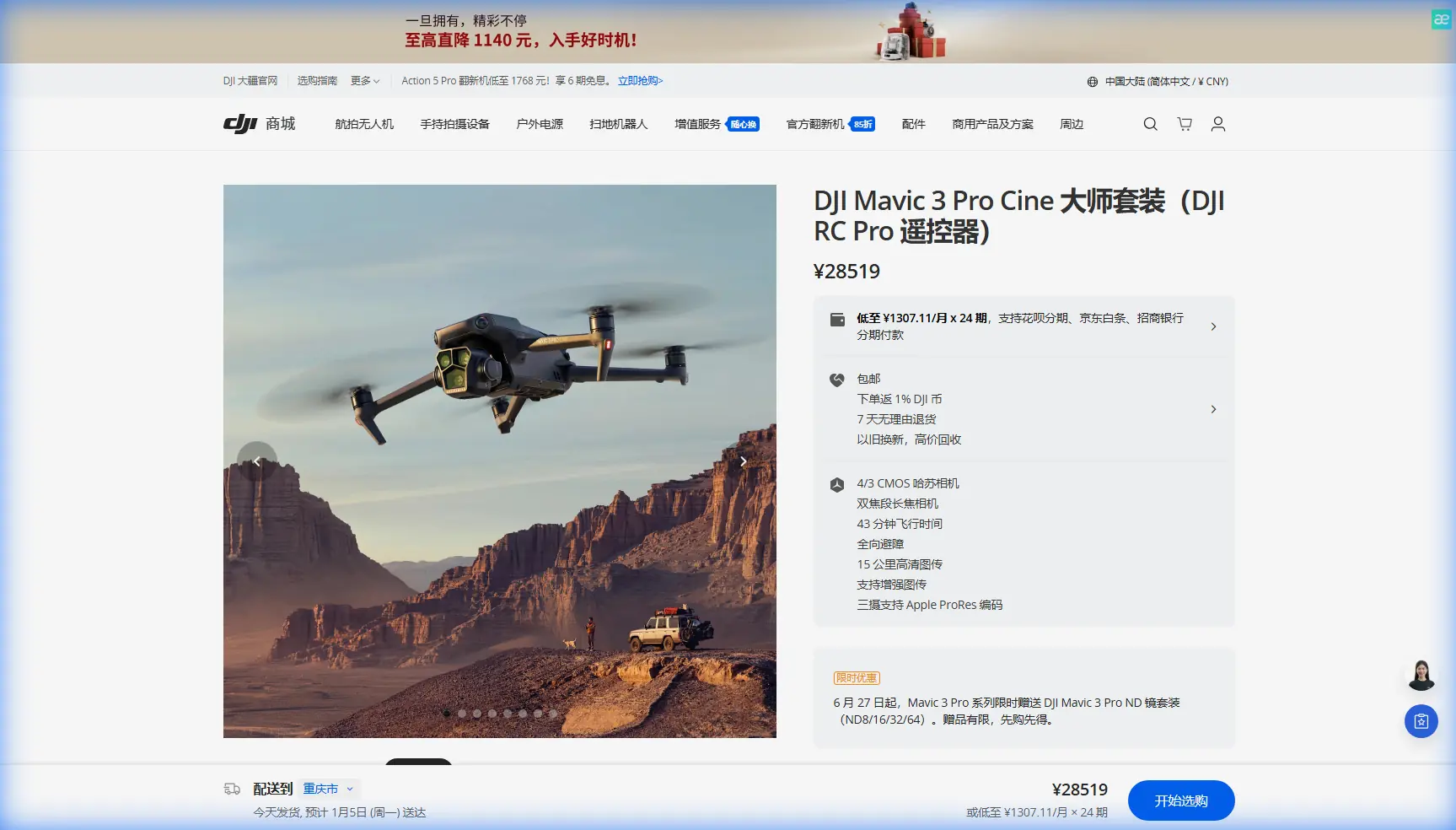
The Mavic 3 Pro carries three distinct cameras, and each one earns its place on a coastal construction shoot:
- 24mm Hasselblad Main Camera (4/3 CMOS): Captures sweeping site overviews with a 20MP sensor and 12.8 stops of dynamic range—essential for preserving detail in bright skies and shadowed foundations simultaneously
- 70mm Medium Tele Camera: Isolates specific building sections, crane operations, or material staging areas without needing to fly dangerously close
- 166mm Tele Camera: Inspects welding joints, roofing details, and elevated structural connections from a safe 150m+ standoff distance
On a typical coastal shoot, I switch between all three lenses multiple times per battery. The 70mm lens is the unsung hero—it delivers tight enough framing for meaningful documentation while keeping the drone outside the active construction zone.
Sensor and Lens Comparison
| Specification | 24mm Main | 70mm Medium Tele | 166mm Tele |
|---|---|---|---|
| Sensor Size | 4/3 CMOS | 1/1.3-inch CMOS | 1/2-inch CMOS |
| Resolution | 20MP | 48MP | 12MP |
| Aperture | f/2.8–f/11 | f/2.8 | f/3.4 |
| Max Video | 5.1K/50fps | 4K/60fps | 4K/30fps |
| D-Log Support | Yes | Yes | Yes |
| Best Use Case | Wide site context | Mid-range detail | Remote inspection |
Handling Electromagnetic Interference: Antenna Adjustment Protocol
Here's the reality most tutorials skip: coastal construction sites are EMI nightmares. Tower cranes act as giant antennas. Generators pump out broadband noise. Rebar grids in freshly poured foundations create signal reflection patterns that confuse GPS and weaken your control link.
During a recent shoot at a 12-story beachfront hotel project in Charleston, I lost three bars of signal strength simply by flying behind the primary tower crane. The Mavic 3 Pro's OcuSync 3+ link held, but video feed stuttered badly enough to make precise framing impossible.
Here's the antenna adjustment protocol I now follow on every coastal construction flight:
- Orient the controller's antennas so the flat faces point directly at the drone's position—not straight up, which is the default posture most pilots use
- Before takeoff, scan for the cleanest transmission channel using the RC Pro's built-in frequency analysis tool; avoid channels showing ambient noise above -80 dBm
- Set transmission to manual channel selection rather than auto; auto-switching mid-flight near EMI sources causes momentary dropouts
- Maintain line-of-sight with the drone at all times—flying behind steel structures breaks the link regardless of signal strength
- Position yourself upwind and uphill from the primary EMI sources (generators, welding stations) whenever the jobsite layout allows
Expert Insight: I carry a small piece of blue painter's tape and mark my controller antenna angle once I've confirmed optimal orientation during hover. This prevents unconscious repositioning during long shoots. It sounds absurdly simple, but it has saved multiple flights.
Configuring D-Log for Coastal High-Contrast Scenes
Standard color profiles fail on coastal construction sites. The dynamic range gap between a sun-bleached concrete pour and a shadowed interior framing section can exceed 10 stops. D-Log captures that full range and gives you room to recover details in post.
D-Log Setup Checklist
- Navigate to Camera Settings > Color > D-Log M (use D-Log M over standard D-Log for better shadow performance on the 4/3 sensor)
- Set ISO to the native base: ISO 100 for daylight coastal shoots
- Use the variable aperture on the 24mm lens to control exposure without relying on ND filters in rapidly changing cloud conditions—start at f/5.6 for the sharpest results
- Enable histogram and zebras at 85% to monitor highlights on reflective surfaces like wet concrete, glass curtain walls, and standing water
- Shoot at 5.1K/24fps or 4K/60fps depending on whether the deliverable is cinematic documentation or slow-motion construction process capture
ND Filter Recommendations for Coastal Light
| Condition | ND Filter | Resulting Shutter Speed (24fps) |
|---|---|---|
| Overcast / Foggy | ND4 | ~1/50s |
| Partly Cloudy | ND8 | ~1/50s |
| Full Sun, Midday | ND16 | ~1/50s |
| Full Sun + Water Reflection | ND32 | ~1/50s |
The goal is always to keep shutter speed near 1/50s at 24fps (double the frame rate) for natural motion blur that reads as professional footage rather than jittery GoPro-style capture.
ActiveTrack 5.0 and Subject Tracking on Active Jobsites
ActiveTrack 5.0 on the Mavic 3 Pro uses the main camera's visual data combined with the omnidirectional obstacle avoidance sensors to track moving subjects while autonomously avoiding obstacles. On a construction site, this is transformative.
Practical Tracking Scenarios
- Tracking a concrete pump truck as it maneuvers into position—set ActiveTrack to "Trace" mode to follow directly behind the vehicle's path
- Orbiting a completed floor while keeping the building centered—use "Spotlight" mode locked on the structure's corner column
- Following a site supervisor walking the perimeter for a project update video—"Parallel" mode maintains a consistent lateral distance
Critical Safety Configuration
Before engaging ActiveTrack on any construction site:
- Set maximum flight speed to 8 m/s (the default tracking speed is too aggressive around cranes and scaffolding)
- Enable APAS 5.0 (Advanced Pilot Assistance System) in "Bypass" mode so the drone routes around obstacles rather than simply stopping
- Set minimum altitude to 15m AGL to clear most ground-level obstructions
- Verify obstacle avoidance sensors are clean—salt spray coats the infrared sensors quickly and degrades detection accuracy
Pro Tip: Before running any ActiveTrack sequence, fly the exact path manually first at slow speed. Identify every cable, antenna, and protruding beam in the flight corridor. ActiveTrack's obstacle avoidance is excellent, but thin cables and guy-wires remain nearly invisible to the sensors. Know your environment before you hand off control.
Leveraging QuickShots and Hyperlapse for Client Deliverables
Construction clients increasingly expect polished aerial content, not just raw survey footage. The Mavic 3 Pro's QuickShots and Hyperlapse modes produce client-ready content with minimal post-production.
Best QuickShots for Construction Documentation
- Dronie: Pulls back and up from a specific detail (completed façade section, foundation pour) to reveal the full site context
- Rocket: Ascends vertically while keeping the subject centered—excellent for showing a building's height progress over monthly update shoots
- Circle: Orbits a point of interest at a fixed distance—perfect for showcasing completed structural milestones
Hyperlapse for Progress Documentation
Set the Mavic 3 Pro's Hyperlapse to Waypoint mode. Program 4-6 waypoints around the construction perimeter. Set the interval to 2 seconds and total duration to 15-20 minutes of real-time capture. The resulting 10-15 second Hyperlapse compresses active construction work into a compelling timelapse that clients can use in investor presentations and marketing materials.
Shoot Hyperlapse sequences in D-Log for consistency with your other footage. The drone's onboard processing handles stabilization and stitching automatically.
Common Mistakes to Avoid
- Flying with default antenna orientation near steel structures: Flat antenna faces must aim at the drone. Neglecting this causes signal drops that feel random but are entirely preventable.
- Using auto exposure in mixed sun/shadow conditions: Coastal light changes rapidly as clouds move. Manual exposure with D-Log gives you control; auto exposure hunts constantly and creates unusable footage with flickering brightness.
- Ignoring salt air corrosion: After every coastal shoot, wipe down the Mavic 3 Pro's body, gimbal, and sensor windows with a microfiber cloth lightly dampened with fresh water. Salt deposits degrade gimbal motors and cloud lens coatings within weeks.
- Flying too close to active crane operations: No shot is worth a collision. Maintain a minimum 30m horizontal clearance from any moving crane arm, and communicate your flight plan with the crane operator before takeoff.
- Skipping pre-flight compass calibration: Rebar and steel structures near the takeoff point cause magnetic interference. Always calibrate the compass away from metal, then carry the drone to the launch point.
- Neglecting to check airspace authorization: Many coastal construction sites fall within controlled airspace near ports and airports. Verify LAANC authorization or obtain manual approval before every shoot.
Frequently Asked Questions
How does the Mavic 3 Pro handle strong coastal winds during construction shoots?
The Mavic 3 Pro maintains stable flight in winds up to 12 m/s (Level 5). On coastal shoots, I've consistently operated in 8-10 m/s sustained winds with reliable gimbal stabilization. Enable Sport mode only for repositioning, not filming—the aggressive attitude angles in Sport mode strain the gimbal's compensation range. For the steadiest footage in wind, fly into the headwind during forward tracking shots so the drone's ground speed is reduced.
Can I use ActiveTrack and obstacle avoidance simultaneously near scaffolding and cranes?
Yes, and you should. ActiveTrack 5.0 integrates directly with the omnidirectional obstacle avoidance system. Set APAS to "Bypass" so the drone actively reroutes rather than stopping dead when it detects an obstacle. However, understand the system's limitations: thin cables below 5mm diameter, transparent materials like glass curtain walls, and very dark objects in shadow may not trigger the sensors. Always maintain visual line of sight and keep your thumb ready on the pause button.
What's the best workflow for delivering monthly construction progress footage to clients?
Fly the same waypoint mission each month using the Mavic 3 Pro's saved waypoint routes. Shoot all footage in D-Log at 4K/30fps or higher. Use consistent ND filtration to match exposure across visits. In post, apply the same LUT across all monthly footage so color grading remains uniform. Export a 60-90 second highlight reel per visit, combining wide establishing shots (24mm), mid-range progress detail (70mm), and closeup inspection frames (166mm). This three-lens storytelling structure gives clients comprehensive documentation that's also visually compelling.
Ready for your own Mavic 3 Pro? Contact our team for expert consultation.